Wiggle and loop a track
A loop repeats a track's keys without adding keyframes, and a wiggle adds smooth random movement on top of it. Both stay settings on the track: change them, switch them off, or bake them into keys.
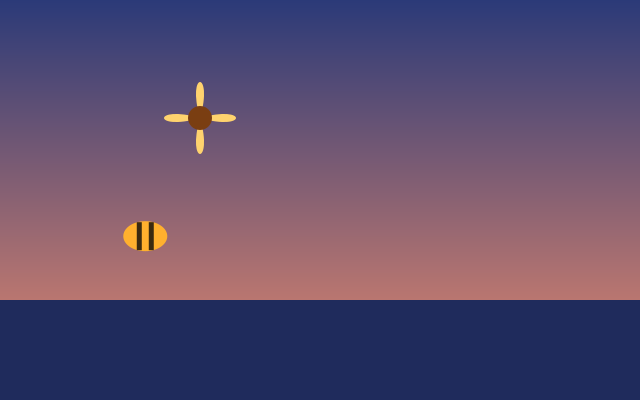
A propeller keeps turning from just two keyframes, and a bee buzzes along its path. This one is the real exported SVG, playing.
Step by step
Select the Rotate keys
In the timeline, click Rotate under Propeller: its two keys are selected. They turn it a quarter turn in half a second, then it stops.
Open Loop
Click Loop… in the timeline header (after Stagger). Its window opens where Easing does; drag its header to move it anywhere.
Pick Offset
Style Offset repeats the quarter turn from where it ended, so the propeller keeps turning. The timeline shows the repeats dashed, and the canvas plays them as you choose: nothing is kept until Apply.
Apply it
Click Apply (or press Enter). A pill after Rotate's name shows the loop: its icon switches it off and on, its text opens the window again.
Select the bee's Position
Click Position under Bee: its keys move it across the field in a straight line.
Open Wiggle
Click Wiggle… in the timeline header. A new wiggle loops over the whole length, so a looping animation repeats with no jump.
Set the amount and apply
Type 14 in Amount (pixels, either way) and press Enter (or click Apply). A squiggle on the lane shows the wiggle, and blue dots beside the motion path show the path the bee really takes.
Play it
Press Space. The propeller turns on and on, and the bee buzzes along its path.
Keys
| Enter | Apply |
| Esc | Cancel |
| Space | Play and pause |