Motion paths
A motion path makes a layer travel along a line you drew. Set motion path turns the line into Position keyframes, one per node, timed so the layer moves at an even speed over the whole animation.
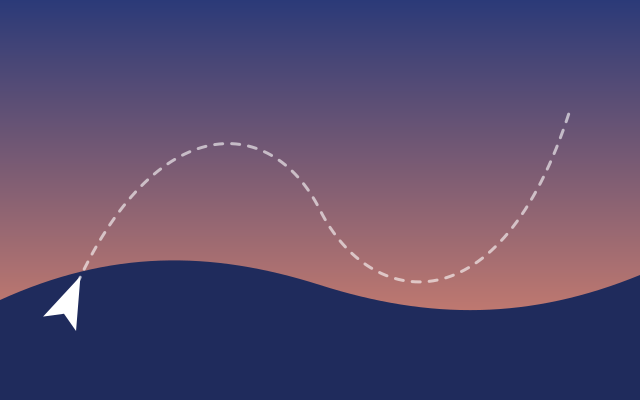
The paper plane flies along the dashed line over the 3-second animation, turning with each curve, and starts over. This one is the real exported SVG, playing.
Step by step
Select the plane
Click the plane on the canvas, or its row in the Layers panel.
Pick the path to follow
In the inspector's Motion path section, open Follow (Set motion path…) and pick Flight path. The plane jumps to the start of the line, and its Position track gets a keyframe for every node of it.
Turn it along the path
Click the arrow button at the end of the Rotate row, under Transforms: Rotate along the motion path. The plane now points where it is going.
Play it
Press Space. The plane flies the whole line in 3 seconds, banking through the curves, and starts over.
Keys
| Shift P | Add a position keyframe at the playhead |
| Space | Play and pause |