Your first animation
Draw a ball, give it a Position track, key it in two places and play it. That is the whole idea of SVGcinema, in six steps.
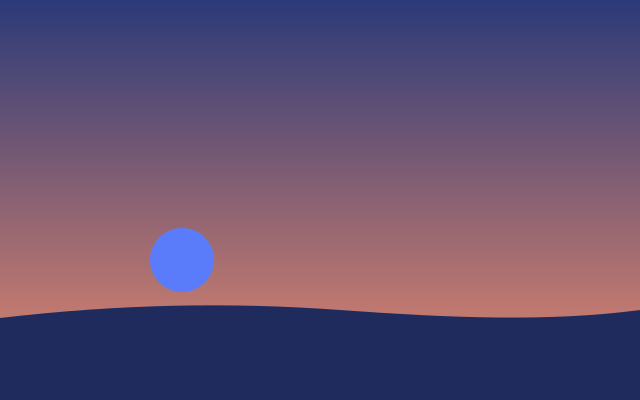
A ball rolls across the ground in two seconds, rests for a second at the end of the 3-second animation, and starts over: one track, two keyframes. This one is the real exported SVG, playing.
Step by step
Pick the Ellipse tool
Press O. The Ellipse tool lives in the shapes button of the tools on the left: hold it to see the other shapes.
Draw a ball
Drag on the canvas, just above the ground. Hold Shift to keep it round. The new ball is selected, and the inspector on the right shows everything you can set on it.
Start a Position track
Click beside Position in the inspector. Position gets its own row on the timeline, with a keyframe at the playhead, and the diamond turns amber.
Move the playhead to 2s
Drag the red playhead along the time ruler at the top of the timeline, to 2s. The inspector now shows the values at that moment.
Move the ball
Press V for the Select tool and drag the ball to the right, or type a bigger X in Position. A second keyframe lands at 2s: the editor fills in everything between the two.
Play it
Press Space. The ball rolls across in two seconds, rests until the end of the animation (3 seconds in a new project), and starts over, as a new project loops forever. Next, give it a better feel in Easing.
Keys
| O | Ellipse tool |
| V | Select tool |
| Space | Play and pause |
| Shift P | Add a position keyframe at the playhead |