Pins that follow bones
A pin can follow a bone instead of keyframes of its own: it sits at the bone's joint and moves and turns with it, so the rig bends the artwork. It suits things that bend along their length, like a tail, a sleeve or this worm.
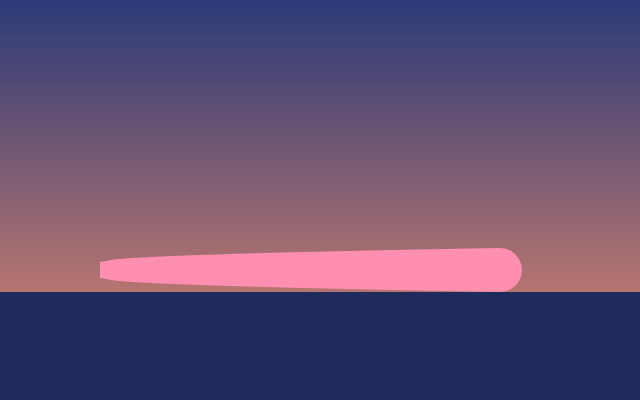
The worm wiggles with its three bones: its pins follow them, without a keyframe of their own. This one is the real exported SVG, playing.
Step by step
Select the worm
With the Select tool, click the worm beside the bones lying along it. The bones already wiggle, but they don't carry the worm.
Pick the Pin tool
Press W. The bones stay on the canvas while the Pin tool is on.
Turn on Bind to bones
Click Bind to bones in the bar above the canvas. It is there while a layer that takes pins is selected and the scene has bones.
Click each bone
Click Bone 1, Bone 2 and Bone 3. Each click adds a red pin at that bone's joint, bound to it; clicking a bound bone again unbinds it. Press Esc when you're done.
Play it
Press Space. The bones wiggle and the worm bends with them: in the Pins section, each pin names its bone instead of a Position.
Keys
| W | Pin tool |
| Esc | Leave Bind to bones |
| Alt P | Show or hide pins |
| Space | Play and pause |