Edit bone tool
The Edit bone tool fixes a rig's bones without touching the animation: it moves joints and changes a bone's length and rest angle, and the artwork attached to the bones stays where it is. Here the arm's bones were drawn a little off, so the arm bends in the wrong places as it waves.
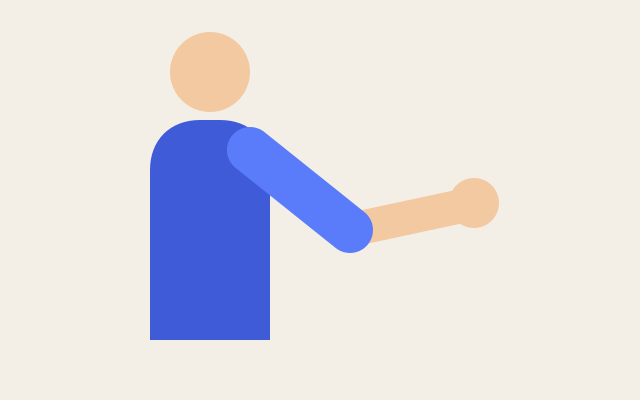
The arm waves, turning at the shoulder and the elbow: the same keyframes as before, on bones that now sit at the joints. This one is the real exported SVG, playing.
Step by step
Pick the Edit bone tool
Press E. The Edit bone tool is in the bones button of the tools on the left. The bones show their rest pose, and a Rest pose chip above the canvas says the keyframes stay as they are.
Move the joint onto the shoulder
Drag the round joint at the start of Bone 1 up onto the shoulder. The joint moves, the bone's tip stays where it is, and the upper arm doesn't move.
Drag Bone 1's tip to the elbow
Drag the round tip of Bone 1 onto the elbow. Bone 1 gets longer and turns, and the joint of Bone 2, which sits on that tip, comes along while its own tip stays put.
Bring Bone 2's tip to the wrist
Drag the tip of Bone 2 back to the wrist. Bone 2 gets shorter; the forearm stays as it is.
Play it
Press V for the Select tool, then Space. The wave's keyframes haven't changed, but now the arm turns at the shoulder and the elbow.
Keys
| E | Edit bone tool |
| V | Select tool |
| Space | Play and pause |
| Alt B | Show or hide bones |