Edit pins tool
The Edit pins tool moves pins at rest, so they hold the artwork somewhere else. A pin you move takes its motion with it: its keyframes move by the same amount, so it still bends the artwork as far, from its new place. Here Pin 2 sits in the middle of the flag, so the flag only sags in the middle.
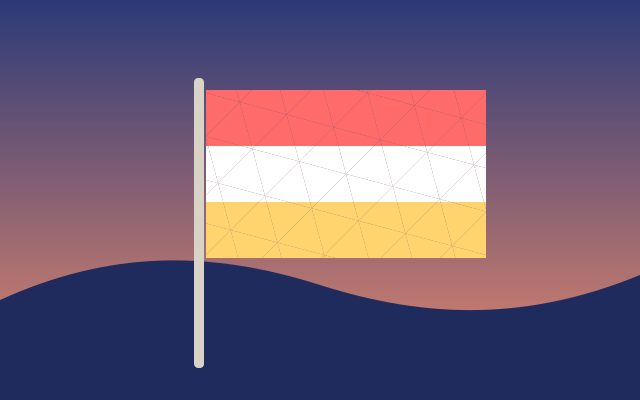
The flag's free end swings down in 1.5 seconds, bending the whole flag, then holds and starts over. This one is the real exported SVG, playing.
Step by step
Select the flag
With the Select tool, click the flag. Its pins show: Pin 1 by the pole, and Pin 2 in the middle, whose track pulls the flag down at 1.5s.
Pick the Edit pins tool
Hold the pins button in the tools on the left and pick Edit pins tool. The flag shows its rest shape, and a Rest pose chip above the canvas says pins move with their motion.
Move Pin 2 to the free end
Drag Pin 2 to the far end of the flag. The flag doesn't change, as a pin at rest holds the artwork where it is, and Pin 2's keyframes move with it.
Play it
Press V for the Select tool, then Space. Now the free end swings down, and the whole flag bends from the pole.
Keys
| W | Pin tool |
| Del | Remove the selected pin |
| V | Select tool |
| Space | Play and pause |
| Alt P | Show or hide pins |