Staggering instances
The instances of a symbol share its animation, so they all move together. Give an instance a time offset and the same animation starts later on it: a row of instances plays one after another.
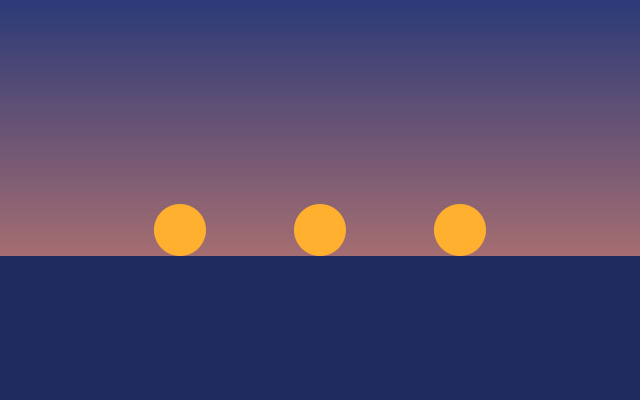
Three dots hop one after another, like a loading indicator, then rest until the animation starts over. This one is the real exported SVG, playing.
Step by step
Select the middle dot
The three dots are instances of one symbol, Dot, so they hop together. Click the middle dot on the canvas: the inspector opens on its Instance section.
Give it a time offset
Type 0.3 in Time offset and press Enter. This instance's hop now starts 0.3s later: in the timeline, its Ball keyframes move along.
Select the last dot
Click the dot on the right. Time offsets are set one instance at a time: with several layers selected, the Instance section isn't there.
Give it a longer offset
Type 0.6 in its Time offset and press Enter. Its hop starts 0.6s after the first dot's.
Play it
Press Space. The dots hop one after another, 0.3s apart, and rest until the 3-second animation starts over.
Keys
| Space | Play and pause |
| Home | Go to the start |