Sound
Add sound files and place them on the timeline as clips: they play with the preview and go into MP4 and WebM videos. Move a clip, trim it, fade it and set its volume, with keys when it should change.
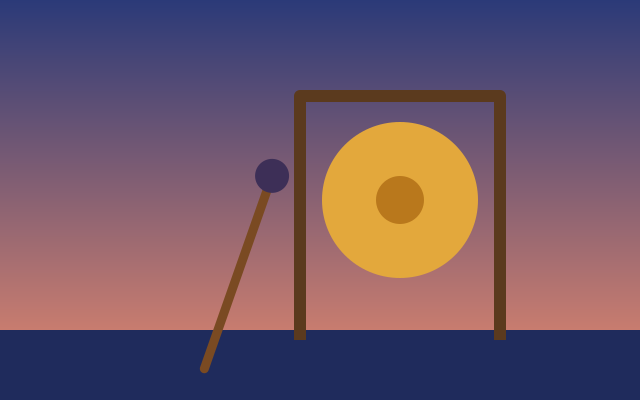
The gong rings just as the mallet strikes it, and dies away before the end. This one is the real exported SVG, playing.
Step by step
Open Assets
Click Assets above the Layers panel. The gong's sound is under Sounds: its waveform, name and length. Drop your own sound files (MP3, WAV, M4A, OGG, FLAC) on the canvas, the timeline or this tab.
Add it to the timeline
Click the sound's waveform: a clip starts at the playhead, in the Sound section under the animated layers. You can also drag the sound onto the timeline, where you want it to start.
Start it on the strike
The mallet hits the gong at 1s. The inspector shows the selected clip: type 1 in Starts at and press Enter. Dragging the clip along its row moves it too.
Fade it out
The dots at the clip's top corners are its fades. Drag the right one to the left: the sound dies away by the end instead of stopping short. Dragging the clip's edges trims it.
Play it
Press Space or click Play: the sound plays with the playhead. Scrubbing is silent.
Keys
| Space | Play and pause |
| Alt + drag | Slip a clip |
| Ctrl ⇧ D | Split the clip at the playhead |